8i | 9i | 10g | 11g | 12c | 13c | 18c | 19c | 21c | 23c | Misc | PL/SQL | SQL | RAC | WebLogic | Linux
Home » Articles » Linux » Here
Kickstart - Automated Installations of RHEL and Oracle Linux
Kickstart installations provide an automated alternative to the normal interactive installations of RHEL and Oracle Linux. The automation of installation and post installation configuration steps represents a considerable time saving in situations where many similar installations are performed.
A kickstart installation requires a kickstart file that contains the answers to every question asked during an interactive installation. Kickstart files can be created in one of three ways:
- Perform an interactive installation. Once complete you will find the Kickstart configuration file for the installation you just completed in the "/root/anaconda-ks.cfg" file. This can be amended and used for subsequent installations.
- Create a Kickstart file in a text editor manually, or based on a copy of a previous file.
- Use the Kickstart Configurator.
This article demonstrates the use of the Kickstart Configurator.
- Installing Kickstart Configurator
- Generating Kickstart Files
- Editing Kickstart Files
- Kickstart Installation
- Network Installations
Related articles.
Installing Kickstart Configurator
The Kickstart Configurator program is installed from a yum repository using the following command as the root user.
# yum install system-config-kickstart
Generating Kickstart Files
The Kickstart Configurator program allows you to answer most of the questions asked during an interactive installation process. Once each section of the configurator is complete, simply save the configuration as a file on a floppy disk, cdrom, USB stick, HTTP server or some other media available at boot time.
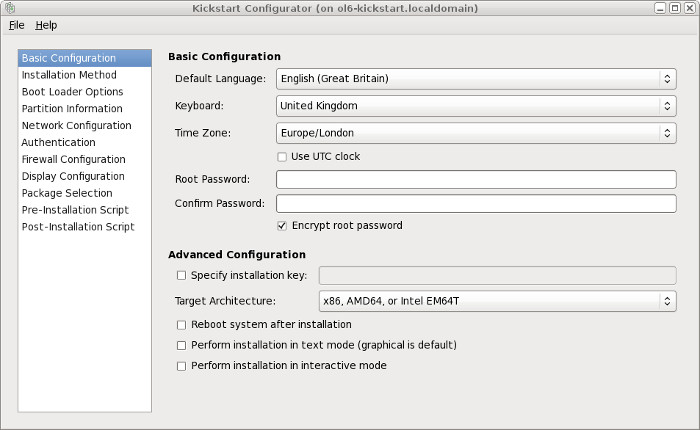
The generated text file can be edited to customize the installation further.
Editing Kickstart Files
There are a large number of Kickstart Options that can not be modified by the Kickstart Configurator. The kickstart file below was generated by the configurator on Oracle Linux 6.x, then modified to include the hostname and some additional packages, shown in bold, to support the installation of 11gR2 database.
#platform=x86, AMD64, or Intel EM64T
#version=DEVEL
# Firewall configuration
firewall --enabled --ssh
# Install OS instead of upgrade
install
# Use CDROM installation media
cdrom
# Root password
rootpw --iscrypted $1$USEhgGL3$288iZJqkskW2pu.8woUF10
# System authorization information
auth  --useshadow  --passalgo=sha512
# Use graphical install
graphical
# Run the Setup Agent on first boot
firstboot --enable
# System keyboard
keyboard uk
# System language
lang en_GB
# SELinux configuration
selinux --permissive
# Installation logging level
logging --level=info
# Reboot after installation
reboot
# System timezone
timezone  Europe/London
# Network information
network  --bootproto=static --device=eth0 --gateway=192.168.0.1 --ip=192.169.0.2 --nameserver=192.168.0.4
         --netmask=255.255.255.0 --onboot=on --hostname=ol6-112-server.localdomain
# System bootloader configuration
bootloader --location=mbr
# Partition clearing information
clearpart --all
# Disk partitioning information
part /boot --fstype="ext4" --size=500
part swap --fstype="swap" --size=2048
part / --fstype="ext4" --grow --size=1

%packages
@base
@basic-desktop
@compat-libraries
@desktop-platform
@development
@directory-client
@fonts
@general-desktop
@graphical-admin-tools
@input-methods
@internet-browser
@large-systems
@server-platform
@system-admin-tools
@x11
kernel-devel
kernel-headers
gcc

%end
Post installation tasks can also be included in the kickstart file by using the "%post" option at the end of the file. This section can contain any valid BASH commands. The script listed below adds a new entry into the "/etc/hosts" file.
#Post-installation script
%post --nochroot
echo "192.168.0.2  ol6-112-server.localdomain  ol6-112-server\n" >> /etc/hosts
Kickstart Installation
To start the installation, boot from the normal installation media. At the boot prompt, press the "Tab" key to amend the boot options with the location of the kickstart file. In this case I've presented the kickstart file from a HTTP server, so we need to add the "ks=http://192.168.0.4/ol6-112-server-ks.cfg" boot option, followed by return.
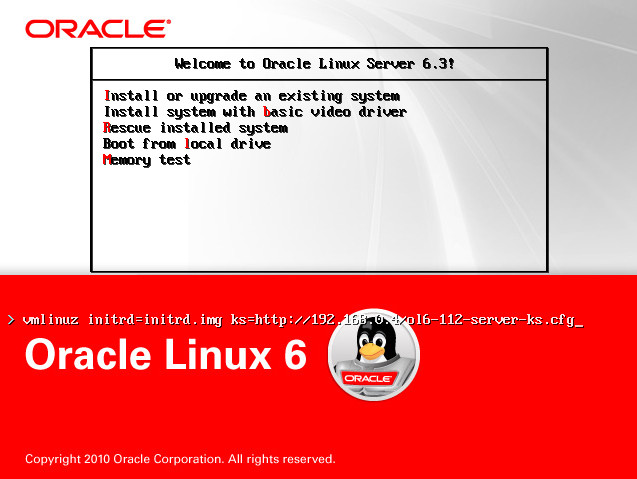
Depending on the version of Linux you are installing, the use of a HTTP or FTP location for the kickstart file will cause the server to either use DHCP or prompt for manual configuration of the network to gain access to the kickstart file. Once the installation is complete the server will reboot and present the normal welcome screen.
Network Installations
As described above, to perform a network installation, place the kickstart configuration file on a HTTP server and boot using the following additional boot option, using the IP address of the HTTP server.
... ks=http://192.168.0.4/ol6-112-server-ks.cfg
If you want to install using network media, either mount the DVD on the HTTP server or copy the media directories from the DVD into a directory available from the HTTP server, then alter the "install" option in the kickstart configuration file to reference that location.
install
url --url http://192.168.0.4/OL6/
The IP address is that of the HTTP server and "OL6" represents the directory containing the installation media, in this case Oracle Linux 6.
For more information see:
- Starting a Kickstart Installation
- Parameters for kickstart installations
- PXE Network Installations (RHEL5 / OL5)
- PXE Network Installations (RHEL6 / OL6)
Hope this helps. Regards Tim...